You just pulled off an insane clutch play, but your recording software was not running. Or maybe you captured a full hour of gameplay only to realize the audio was muted. Every gaming creator has been there, and every wasted clip is a missed opportunity for growth.
The difference between gaming TikTok accounts that grow and those that stall is not talent. It is workflow. Creators who nail their recording and editing setup produce more clips, post more consistently, and grow faster. When your capture pipeline is dialed in, you can turn a single gaming session into a week of content without breaking a sweat.
This guide walks you through every step of recording gaming content for TikTok. Whether you play on PC, console, or mobile, you will learn exactly what tools to use, how to set them up, and how to edit your clips into scroll-stopping TikToks. No expensive gear required.
Why your recording setup matters:
- Gaming creators who post daily or near-daily grow 3-5x faster than weekly posters
- 60fps gameplay clips get significantly higher completion rates than 30fps recordings on TikTok
- A streamlined recording workflow lets you extract 5-10 TikTok clips from a single 2-hour gaming session
- Clear audio quality is the number one factor viewers cite when choosing to follow a gaming creator
Table of Contents
- Choose Your Recording Setup (PC, Console, or Mobile)
- PC Recording: OBS, ShadowPlay, and More
- Console Recording: PlayStation and Xbox
- Mobile Gaming: Screen Recording Done Right
- Audio Setup for Commentary and Reactions
- Edit Gaming Clips for TikTok Like a Pro
- Optimization Tips for Maximum Views
- Frequently Asked Questions
Choose Your Recording Setup
Your recording setup depends entirely on your platform. The good news is that every gaming platform has free or built-in recording options that produce TikTok-quality clips. You do not need to spend hundreds of dollars before you post your first video.
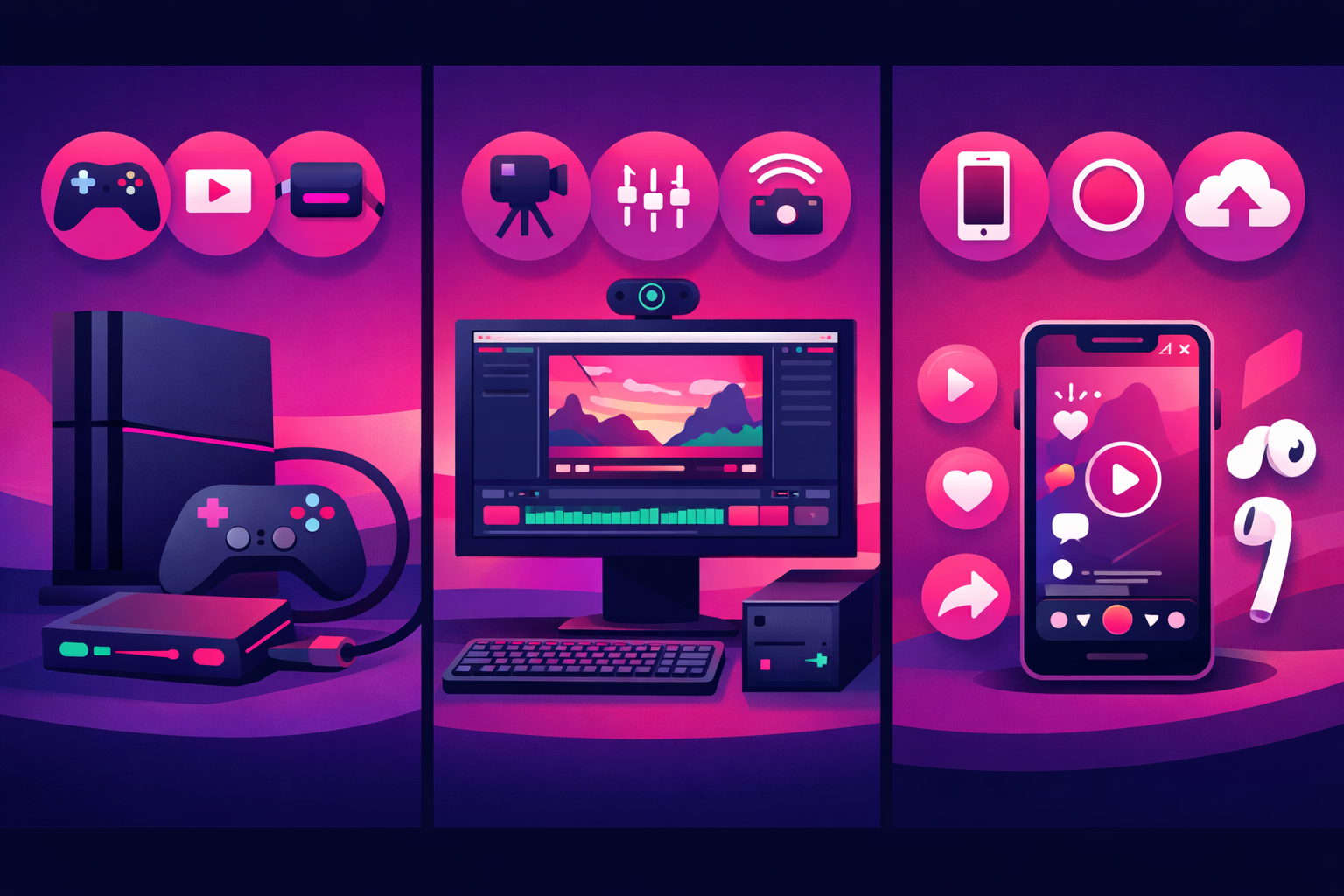
Here is a quick breakdown of what each platform offers and what you might want to add later as you grow. Start with the free option for your platform and upgrade only when you hit a clear limitation.
Recording Setup by Platform
PC Gaming (Windows)
Free: OBS Studio, NVIDIA ShadowPlay, AMD ReLive, Xbox Game Bar. Best for TikTok: OBS Studio or ShadowPlay with instant replay enabled.
Console (PlayStation / Xbox)
Free: Built-in capture (Create button on PS5, Share on Xbox). Optional upgrade: Capture card ($30-150) for higher quality and facecam overlay.
Mobile Gaming
Free: Built-in screen recording on iOS and Android. Best for TikTok: Already vertical and ready to edit. The simplest pipeline of all three platforms.
PC Recording: OBS, ShadowPlay, and More
PC gamers have the most recording options. The two most popular tools among gaming TikTok creators are OBS Studio and NVIDIA ShadowPlay. Both are completely free, and each has strengths depending on your workflow.
OBS Studio (Best Overall)
OBS Studio is the gold standard for game recording. It is free, open-source, and runs on Windows, Mac, and Linux. The learning curve is slightly steeper than ShadowPlay, but the flexibility is worth it.
Recommended OBS Settings for TikTok
- Resolution: 1920x1080 (1080p)
- Frame rate: 60fps
- Encoder: NVENC (if NVIDIA GPU) or x264
- Bitrate: 6000-8000 Kbps for recording
- Format: MKV (remux to MP4 after recording)
- Audio: Separate tracks for game audio and microphone
The most important OBS setting for TikTok creators is separate audio tracks. By recording your microphone on a different track from game audio, you can adjust commentary volume independently during editing. This makes a massive difference in clip quality.
NVIDIA ShadowPlay (Best for Instant Replays)
If you have an NVIDIA GPU, ShadowPlay is built into GeForce Experience and uses almost zero system resources. Its killer feature is Instant Replay, which constantly records the last 1-20 minutes of gameplay in the background. When something incredible happens, just press a hotkey to save it.
The Instant Replay Strategy
Set ShadowPlay's Instant Replay to 5 minutes and bind the save hotkey to something easy to reach. Play normally, and whenever something clip-worthy happens, hit the key. At the end of your session you will have a folder full of potential TikTok clips without ever having to manually start and stop recording. This single feature is why many successful gaming TikTok creators prefer ShadowPlay for capture.
Other PC Recording Options
AMD ReLive is the AMD equivalent of ShadowPlay and works well for Radeon GPU users. Xbox Game Bar (Win+G on Windows) is the simplest option with basic recording capability, though it lacks advanced features like separate audio tracks. For most gaming TikTok creators, OBS or ShadowPlay covers everything you need.
Console Recording: PlayStation and Xbox
Console recording has improved dramatically. Both PlayStation and Xbox now offer built-in capture that is more than enough to create viral gaming TikToks. Here is how to get the most out of each platform.
PlayStation 5
PS5 Recording Setup
- Go to Settings > Captures and Broadcasts > Captures
- Set video clip format to WebM or MP4
- Set resolution to 1920x1080
- Enable “Include Your Microphone's Audio” if you want commentary
- Press the Create button to save recent gameplay (last 15 seconds to 1 hour)
- Transfer clips to your phone via the PlayStation App
Xbox Series X/S
Xbox Recording Setup
- Go to Settings > Preferences > Capture & Share
- Set game clip resolution to 1080p SDR or 4K HDR
- Set default recording duration (30 seconds to 10 minutes)
- Press the Share button to capture recent gameplay
- Access clips in the Xbox App on your phone for easy transfer
When to Add a Capture Card
A capture card sits between your console and your PC (or laptop), sending the video feed to your computer for recording. You need one if you want to add a facecam overlay, use OBS scenes, or record in higher quality than the console allows. Budget options like the Elgato HD60 X or AVerMedia Live Gamer Mini start around $100 and handle 1080p60 without issues.
That said, most console TikTok creators start without a capture card. The built-in recording is perfectly fine for short clips, and you can always upgrade later if you want to add facecam or produce longer content.
Mobile Gaming: Screen Recording Done Right
Mobile gaming content has a built-in advantage for TikTok: it is already vertical. You do not need to crop or reframe anything. Here is how to capture clean mobile gaming footage on both iOS and Android.
iPhone / iPad
Add Screen Recording to Control Center (Settings > Control Center). Swipe down and tap the record button. Long-press it to enable microphone audio for commentary. Clips save directly to your Camera Roll.
Android
Most Android phones running Android 11+ have built-in screen recording. Pull down the notification shade and tap Screen Record. Enable audio recording for game sounds and commentary. Files save to your gallery.
Mobile Gaming Pro Tip
Turn on Do Not Disturb before recording. Nothing kills a great gaming clip faster than a notification banner dropping into the middle of your screen. Also close background apps to prevent frame drops during recording.
Audio Setup for Commentary and Reactions
Audio quality separates amateur gaming clips from content people actually follow. You do not need a studio microphone, but you do need clear audio that is not drowned out by game sounds.
Audio Equipment by Budget
Free ($0)
Your gaming headset microphone. Most headset mics are decent enough for TikTok commentary. Position the mic close to your mouth and reduce game volume slightly.
Budget ($30-60)
A USB condenser microphone like the Fifine K669 or Blue Snowball. Massive audio quality jump over headset mics. Place it 6-8 inches from your mouth on a desk stand.
Mid-Range ($80-150)
A dynamic USB microphone like the Samson Q2U or Audio-Technica ATR2100x. These reject background noise better than condensers, which is ideal for rooms with mechanical keyboards or fan noise.
Regardless of your microphone, the most important audio tip is recording your voice and game audio on separate tracks. This gives you full control in editing. In OBS, go to Settings > Audio and assign your microphone to a separate audio track from your desktop audio.
If you record commentary-free gameplay clips, you can add voiceover or trending audio in editing instead. Many viral gaming TikToks use this approach, overlaying music or narration after the fact for better control over the final product.
Edit Gaming Clips for TikTok Like a Pro
Recording is only half the battle. Editing is where you turn raw gameplay into content that people actually watch, share, and follow you for. The goal is speed and consistency, not cinematic perfection.
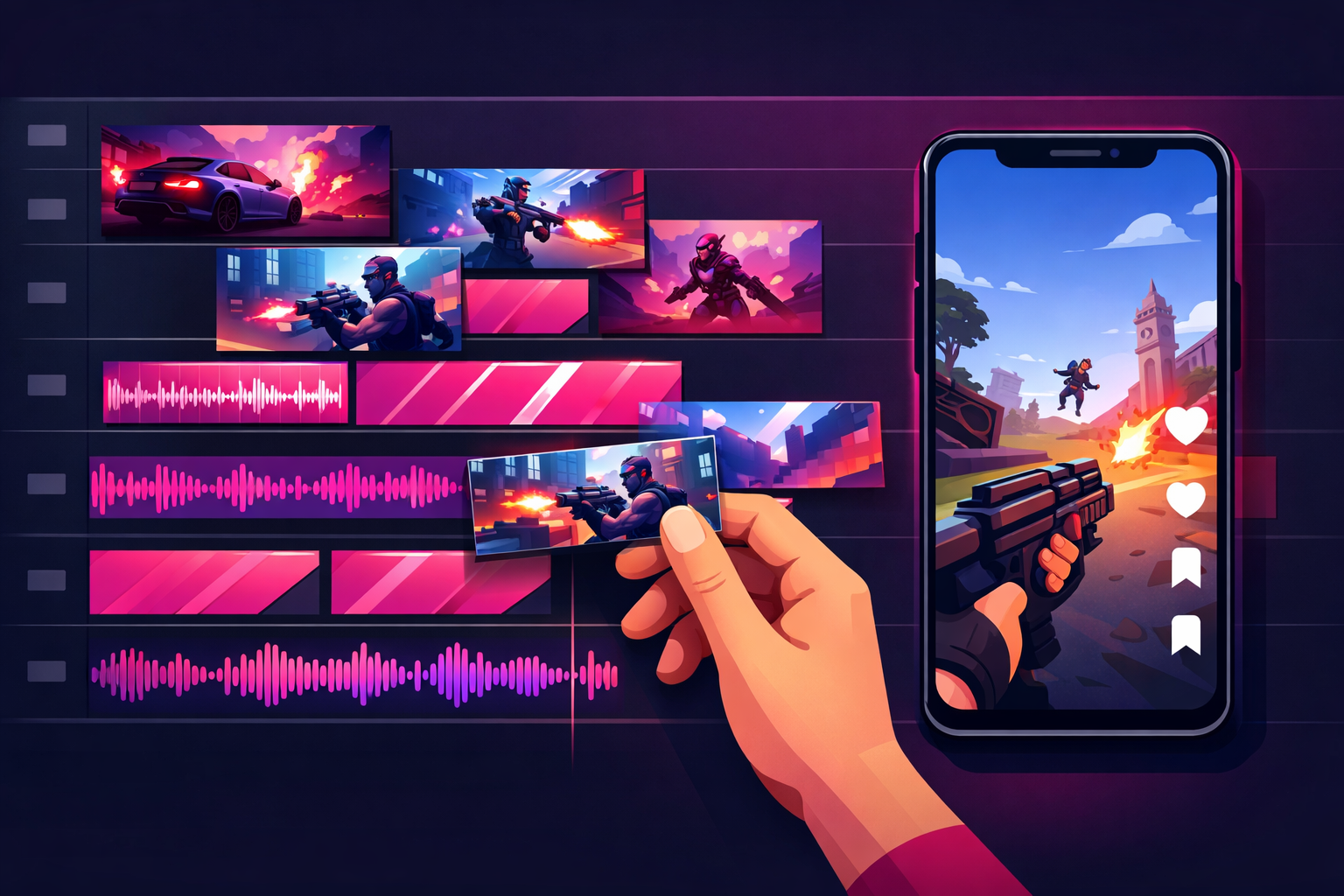
Best Editing Apps for Gaming TikToks
CapCut (Recommended for Most Creators)
Free, available on desktop and mobile, and built specifically for short-form video. Features auto-captions, speed ramping, keyframe animations, and a huge library of effects. Most gaming TikTok creators use CapCut as their primary editor.
DaVinci Resolve (Best Free Pro Editor)
A full professional editing suite that is free. Steeper learning curve but unmatched control over color grading, audio mixing, and effects. Ideal if you want to produce higher production value content.
TikTok Editor (Fastest Workflow)
Upload your clip directly and use TikTok's built-in editor for quick trims, captions, and trending sounds. Not as powerful as CapCut, but the fastest path from gameplay to published TikTok.
InShot (Best for Mobile Editing)
Lightweight mobile editor with good trim, crop, and text tools. Great for mobile gamers who want to edit entirely on their phone without switching to a computer.
The 5-Step Editing Workflow
Follow this workflow to edit gaming clips fast and consistently. Once you internalize these steps, you can turn raw footage into a finished TikTok in under 10 minutes.
- Trim to the moment. Cut everything before and after the key action. Your clip should start within 1 second of the interesting part. TikTok rewards videos that hook viewers instantly.
- Crop to vertical (9:16). If your source is 16:9 gameplay, crop to a 9:16 frame centered on the action. Zoom in slightly to fill the screen. Pillarboxed (small gameplay with black bars) content performs poorly.
- Add captions or text. Overlay text that provides context or hooks the viewer. Auto-captions for commentary are effective. Short text like “Watch what happens next” or “1v5 clutch” at the start increases retention.
- Adjust audio. Balance game audio and commentary so your voice is clearly audible. Add trending music or sound effects if applicable. Game audio should be at 30-50% if you have commentary.
- Export and post. Export at 1080x1920 (vertical 1080p). Add relevant hashtags and a hook in your caption. Post during peak gaming hours (typically 7-11 PM in your timezone).
The Vertical Crop Trick
Instead of showing your full 16:9 gameplay in a tiny box, try a split-screen layout. Put the cropped gameplay in the top half and your facecam reaction in the bottom half. This maximizes screen real estate while keeping the gaming content formats that perform best on TikTok. If you do not have a facecam, use the bottom half for captions, game stats, or a second angle.
Optimization Tips for Maximum Views

Great recording and editing get you halfway there. These optimization tips push your gaming TikToks from good to viral.
Recording Optimization
- Always record at 60fps. Gaming content with fast action looks choppy at 30fps. TikTok supports 60fps playback, and viewers notice the difference.
- Use instant replay features. ShadowPlay and AMD ReLive both have replay buffers. Enable them so you never miss an unexpected moment.
- Batch your sessions. Dedicate one or two sessions per week to “content capture” where you actively look for clip-worthy moments. This is more productive than hoping to capture something during casual play.
- Record your reactions. Even if you do not use a facecam now, recording your voice reactions during gameplay gives you audio you can use later for voiceover or commentary edits.
Posting Optimization
- Keep clips under 60 seconds. For gaming TikToks, 15-45 seconds is the sweet spot. Shorter clips get higher completion rates, which the TikTok algorithm rewards with more reach.
- Hook in the first second. Start with the most exciting frame. Do not include a slow intro, logo animation, or “what's up guys.” Jump straight into the action.
- Use 3-5 relevant hashtags. Mix broad tags (#GamingTikTok) with game-specific tags (#Valorant, #Fortnite) and content-type tags (#ClutchMoment, #GameplayClip).
- Post during peak hours. Gaming audiences are most active between 7 PM and 11 PM on weekdays, and throughout the afternoon on weekends.
Amplify Your Best Gaming Clips
When a clip performs well organically, put some budget behind it. Viryze tests multiple gaming audience segments to find the viewers most likely to follow your channel. Instead of waiting for the algorithm to push your best content, put it in front of the right gamers immediately through TikTok's official advertising system.
Your Complete Recording-to-TikTok Pipeline
Here is the full workflow, from gameplay to published TikTok. Follow this pipeline and you will have a repeatable system for producing gaming content ideas on a consistent schedule.
The 4-Stage Pipeline
Capture
Play with recording or instant replay active. Save every notable moment. Aim for 5-10 raw clips per session.
Review
Scan through your saved clips and tag the best 3-5 moments. Delete the rest to keep your folder clean and your editing focused.
Edit
Trim, crop to 9:16, add text and audio. Follow the 5-step editing workflow above. Batch-edit multiple clips in one sitting for efficiency.
Publish
Upload to TikTok with a strong caption, relevant hashtags, and at the optimal time. Schedule posts across the week rather than posting everything at once.
The entire pipeline from capture to published TikTok should take under 30 minutes per clip once you have practiced a few times. Batch your editing to knock out 5-7 TikToks in a single hour, then schedule them throughout the week. This is how top gaming creators on TikTok maintain daily posting schedules without gaming 8 hours every day.
Ready to take your gaming content further? Viryze's TikTok promotion platform helps gaming creators reach their ideal audience by testing multiple targeting combinations and optimizing budget toward the segments that drive the most followers. Put your best clips in front of the right people and grow your gaming channel faster.
Frequently Asked Questions
What is the best free software to record gaming content for TikTok?
OBS Studio is the best free option for PC gamers. It supports 1080p and 4K recording, custom scenes, and audio mixing. NVIDIA ShadowPlay is another excellent free choice if you have an NVIDIA GPU, offering instant replay capture with minimal performance impact. For console players, the built-in recording on PlayStation and Xbox works well for short clips.
What resolution and frame rate should I record gaming TikToks in?
Record at 1080p 60fps for the best balance of quality and file size. TikTok supports up to 1080p, so recording at 4K is unnecessary unless you plan to crop or zoom in post. 60fps is important for gaming content because it keeps fast action smooth and clear.
How do I record console gameplay for TikTok without a capture card?
Both PlayStation and Xbox have built-in recording features. On PS5, press the Create button to save recent gameplay. On Xbox Series X/S, press the Share button to capture the last 30 seconds to 10 minutes. Transfer clips to your phone via the PlayStation or Xbox app, then edit in CapCut or TikTok before posting.
Do I need a capture card to make gaming TikToks?
No. A capture card is useful for higher quality recordings, longer clips, or facecam overlays from console gameplay. But built-in console recording and free PC software like OBS handle most TikTok use cases perfectly. Many viral gaming TikToks use nothing more than basic screen recording.
What is the best editing app for gaming TikTok content?
CapCut is the most popular choice because it is free, fast, and designed for vertical video. It includes auto-captions, speed ramping, and gaming-friendly effects. DaVinci Resolve is the best free professional-grade option. Mobile-first creators often edit directly in TikTok or use InShot for quick cuts.
More Gaming Creator Resources
- TikTok for Gaming Creators: Complete Guide to Growing Your Gaming Channel
- Gaming TikTok Content Ideas: 50+ Videos That Go Viral
- Understanding TikTok's Algorithm: What Really Matters
- TikTok Advertising Guide: Complete Strategy for Creators
- Spark Ads on TikTok: Creator's Complete Guide
- Ultimate Guide to TikTok Growth

Head of Creator Success at Viryze
TikTok growth strategist helping creators reach their first 100K followers through data-driven promotion strategies.